
01
What This Page Covers
This page is published by Bay Services Ltd for BSL Care and explains how users can delete their BSL Care account and what the deletion process does. It is intended for residents, owners, tenants, staff, vendors, and other authorized users with app access.
Deleting an account removes your access to the app and closes the account as an active login identity. Some limited information may be retained where needed for legal, accounting, billing, property-management, dispute-resolution, security, or operational records.
02
Before You Delete Your Account
Account deletion is intended to be permanent. Review these points before submitting a deletion request.
You will lose access to the BSL Care mobile app after deletion is completed.
You may no longer receive app notifications for properties, requests, bills, invoices, or notices.
Open service requests, billing records, invoices, audit records, and property-management history may remain available to Bay Services Ltd or authorized management users where required for legitimate operations.
Your email address may remain blocked from new registration to preserve account history and prevent accidental reuse of a closed account.
If your account is linked to multiple apartments, buildings, or staff assignments, deletion applies to the account identity, not only to one apartment or property.
03
Delete Your Account In The App
Use the in-app deletion flow when you can still sign in to your BSL Care account.
Step 1: Open the BSL Care app and sign in to your account.
Step 2: Go to Profile or Security settings.
Step 3: Open Delete Account.
Step 4: Read the deletion information shown on screen so you understand what access and records are affected.
Step 5: Confirm your identity by entering your current password when requested.
Step 6: Submit the deletion request. The app will sign you out after the request is completed.
If your sign-in method does not currently support in-app deletion, contact support using the details on this page.
04
Mobile App Deletion Steps
In the BSL Care mobile app, follow these screens to reach the account deletion flow and verify the request.
Step 1: Open the Settings menu, then tap Account & Security to access your account management options.
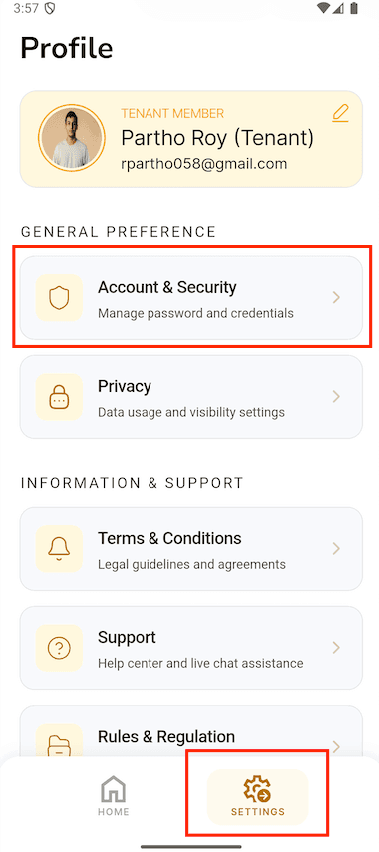
Open Account & Security from Settings. Step 2: On the Account & Security screen, tap Delete Account to begin the account deletion process.
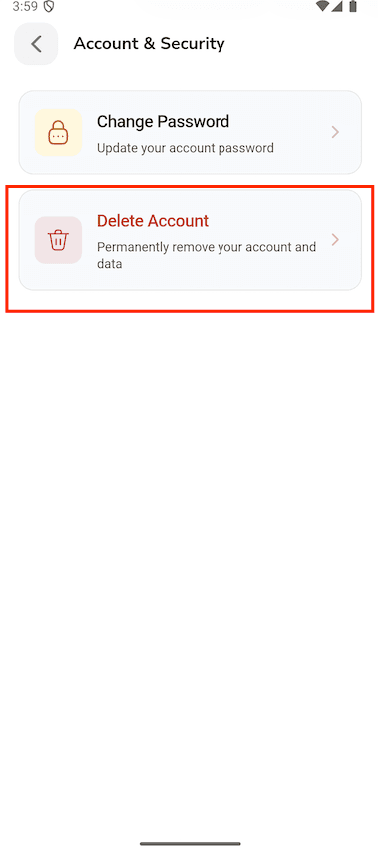
Choose Delete Account. Step 3: Review the information, enter your current password, and tap Delete My Account to confirm your request.
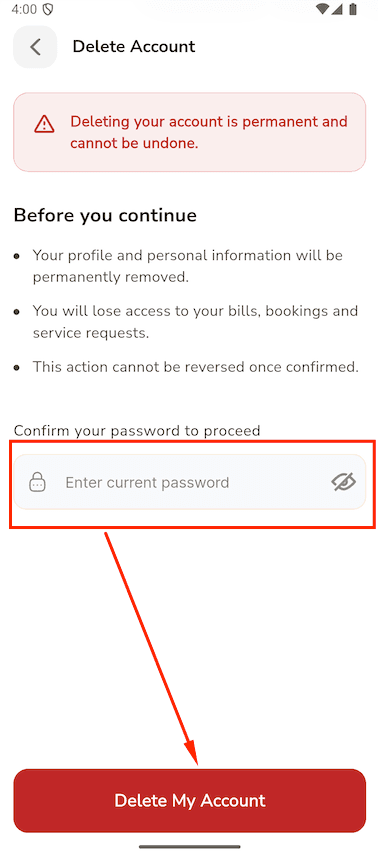
Confirm your password and submit.
After the request is completed, the app may sign you out and disable account access.
05
What Happens After Deletion
The deletion process is designed to close access while preserving records that the property operation may need.
06
Information That May Be Deleted, Deactivated, Or Retained
The exact handling depends on legal requirements, operational records, and the type of data.
Retention is handled according to the Privacy Policy, applicable law, and Bay Services Ltd's legitimate property-management obligations.
07
Request Deletion By Email
If you cannot access the app, you may request assistance by email.
Step 1: Send an email from the email address linked to your BSL Care account, if possible.
Step 2: Use the subject line: BSL Care account deletion request.
Step 3: Include your full name, registered email address, phone number, and the property or apartment information linked to your account.
Step 4: Bay Services Ltd may ask for additional verification before processing the request.
We will respond within the time required by applicable law and may retain information where required for legal, accounting, or property-management purposes.
08
Deletion and Privacy Contacts
Use these contacts for BSL Care account deletion, privacy rights, or general support questions.
Company
Bay Services Ltd
Privacy enquiries
sanaul.h.bay@gmail.com
General support
info@bayservicesltd.com
Address
Bay's Edgewater, NE (N) 12, North Avenue, Gulshan 2, Dhaka 1212, Bangladesh